Build an AI Workspace That Works: The Hub & Spoke Framework
Estimated reading time - 6 minutes
💡 The 30-Second Summary: Most small teams don't have a "tech" problem, they have a "search" problem. This guide shows you the Hub & Spoke framework to organise your AI tools so you stop losing files and wasting hours every week.
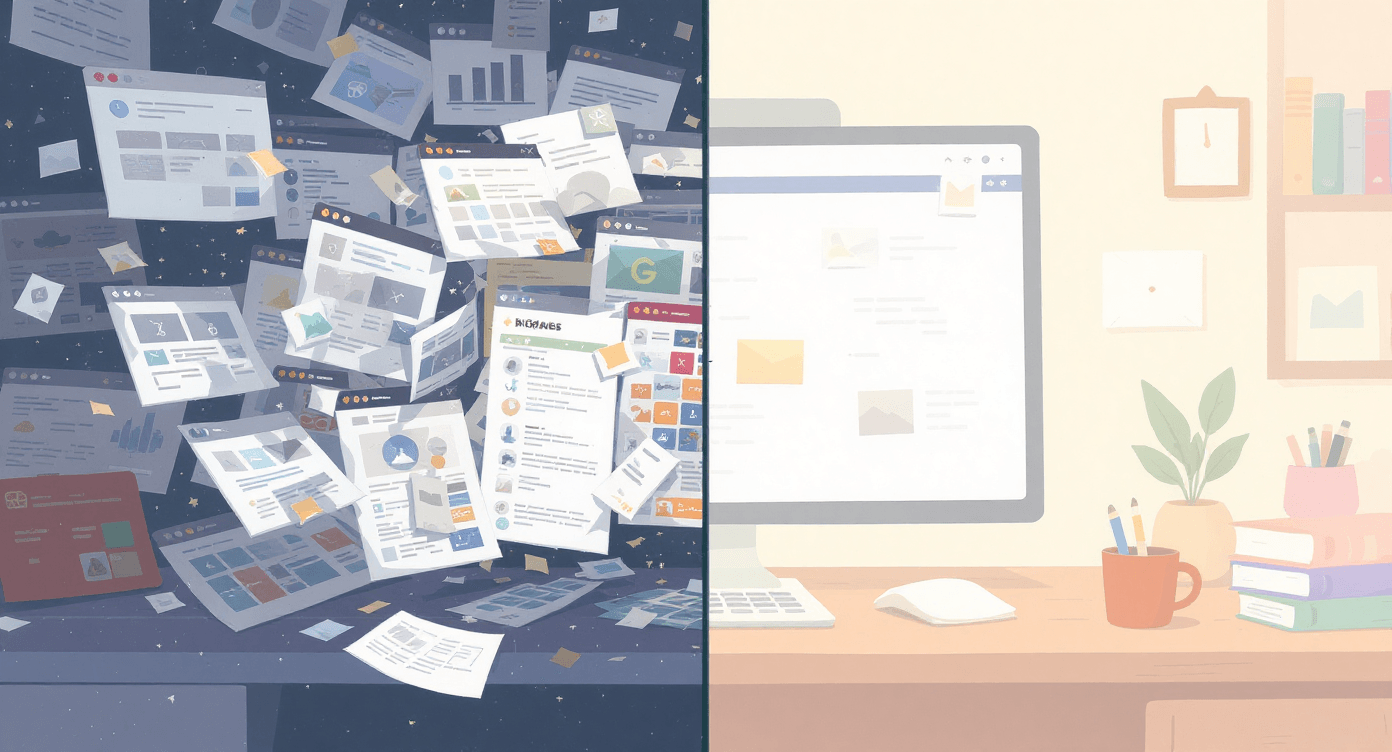
😱 Pick Your Current Nightmare
Which of these makes you want to chuck your laptop out the window?
Spending 20 minutes finding that thing someone shared last week?
Client asks a question and you've no idea who answered it or where?
Team using six different tools when one would do?
Brilliant AI output disappearing into the digital void?
Monday morning meetings spent reconstructing what happened Friday?
We're fixing all of these. Let's crack on.
🧰 New to AI work spaces? Start with How to Use AI: 4 Simple Ways Beginners Can Start Today then come back here for the team setup.
🔍 The "Broken Setup" Checklist
Your Current Reality (The Mess):
The Search Scavenger Hunt: You spend more than 5 minutes looking for a specific AI prompt or output because it's "somewhere" in a chat history.
The Tab Trap: You have 20 tabs open because you’re terrified that if you close a ChatGPT window, that "perfect" response is gone forever.
The "Where is it?" Game: Work is scattered across Google Docs, Slack, and Notion, and nobody knows which version is the final one
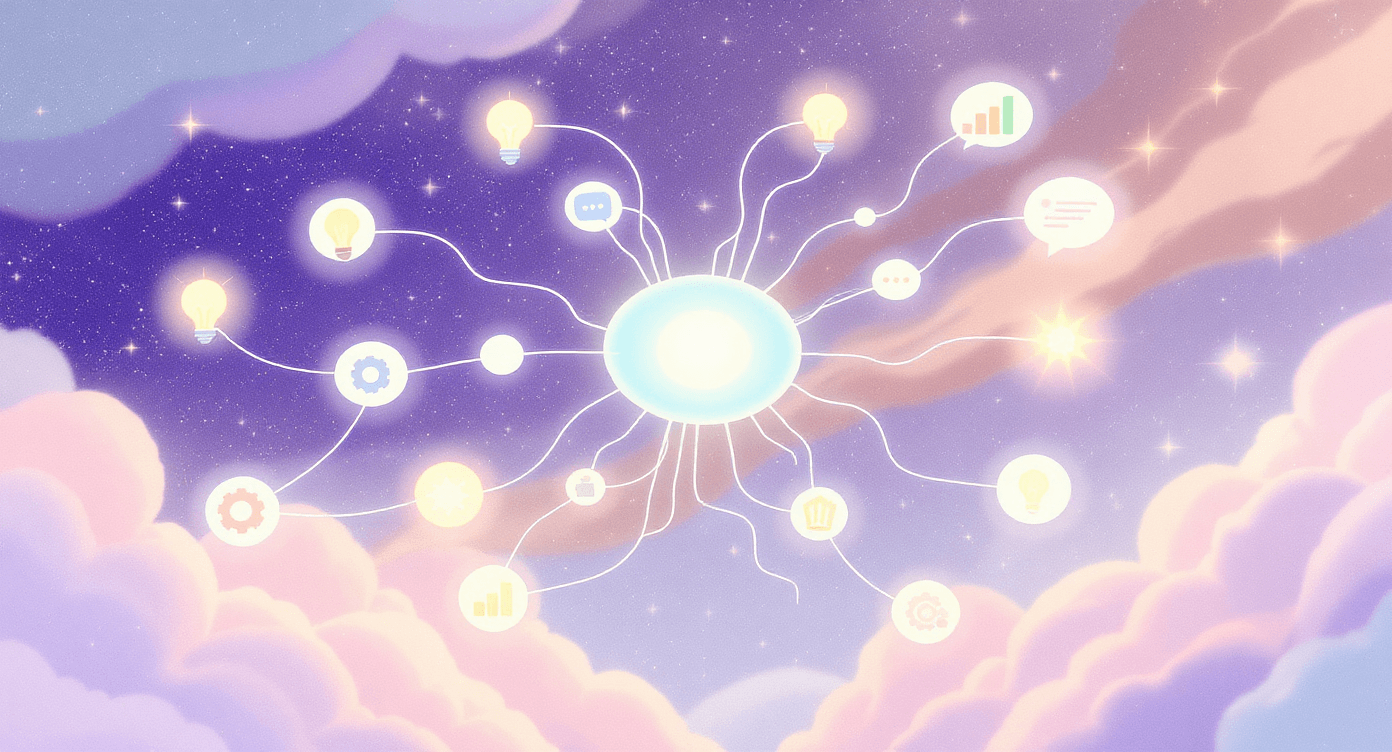
The Problem: You have brilliant tools, but no "Central Command." It’s like hiring five geniuses who refuse to speak to each other. You aren't failing at AI; you’re just missing the glue that holds it together.

The Real Cost of Workspace Chaos
Time you're actually losing:
15-20 minutes per day hunting for information (that's 5+ hours monthly)
30 minutes daily context-switching between tools
2 hours weekly in "alignment" meetings reconstructing decisions
Uncountable hours redoing work because someone couldn't find the original
What Actually Makes a Workspace Work
Three non-negotiable elements:
1. Central Command Centre Everything starts and ends in one place. Not five places. One. This is where your team knows to look first, last, and always. [YOUR BUSINESS HQ LINK - This is where our Business HQ Digital Planner comes in. It's specifically designed to be that central command for small teams using AI tools - tracks projects, manages AI outputs, and keeps everyone aligned without the corporate project management bollocks.]
2. Clear Information Hierarchy Draft ideas go here. Final work goes there. Client communications happen in this specific place. No archaeology required.
3. Integrated AI Tools Your AI tools need to feed into your workspace, not exist in parallel universes. ChatGPT output shouldn't live in ChatGPT forever.
💼 86% of employees and executives cite lack of collaboration or ineffective communication as the primary cause of workplace failures. For teams under 10 people, the impact is 23% more severe than larger organisations. - Salesforce Research / Forbes, 2023
🏗️ The Hub & Spoke Framework
Right, enough theory. Here's how to build a workspace that doesn't make you want to scream.
Step 1: Choose Your Foundation
The Hub (Your Home Base): Use a tool like Notion. It handles the "boring" stuff (databases and tables) and the "creative" stuff (notes and drafts) in one place.
One Central Search: Find anything in seconds.
Team Visibility: No more asking "Is this the latest version?"
Built for AI: It’s designed to house the long-form content AI creates.
Why Notion wins for AI workspaces: It's the only tool that handles both structured data (databases, tables) and unstructured creativity (notes, docs) without having an identity crisis.
Try Notion free - We use it for SimplifyAI and genuinely couldn't run without it.We aren't affiliated with Notion, we love it and use it everyday.
The alternative: If you're already deep in Google Workspace or Microsoft 365, stay there. Switching foundations costs more chaos than it solves. Just add AI tools strategically rather than rebuilding everything
Step 2: Map Your Actual Workflow
The "Follow the Paper" Exercise: Don't map a "fantasy" workflow. Just look at your last finished project. Where did the brief start? Where did the AI brainstorming happen? Where is the final file now? If those three things are in different apps with no links between them, that is your "Broken Spoke".
Step 3: Assign Each Step a Home
The Rule: Every action gets one (and only one) designated location.
📥 The Inbox: Client briefs from Email/Slack go straight into a Notion "Inbox" page.
💡 The Engine Room: Use ChatGPT or Claude for brainstorming, but move the "Final Draft" to Notion immediately.
🎨 The Asset Gallery: Designs from Canva or Gamma are stored in a central Notion "Assets" folder.
📝 The Feedback Loop: Use Jotform for client feedback so it lands directly in your project notes.
✅ The Vault: Final approved files live in Google Drive, with a quick link saved in Notion.
The Test: If you can't answer "where does X live?" in three seconds, the system is broken
🔥 Understanding What AI is helps you decide which tools handle which workflow steps.
Step 4: Build Your AI Tool Stack (Properly)
The core stack for most small teams:
Notion - Central command
ChatGPT or Claude - Content generation, problem-solving
Gamma - Presentations, visual content, client-facing documents
Jotform - Forms, surveys, data collection that feeds into Notion
CustomGPT - Custom AI assistant trained on your specific business info
These tools work together because they actually integrate or export in useful formats.
The SimplifyAI Toolkit (Tools we actually use):
Step 5: Create Your Team Playbook (The 3 Rules)
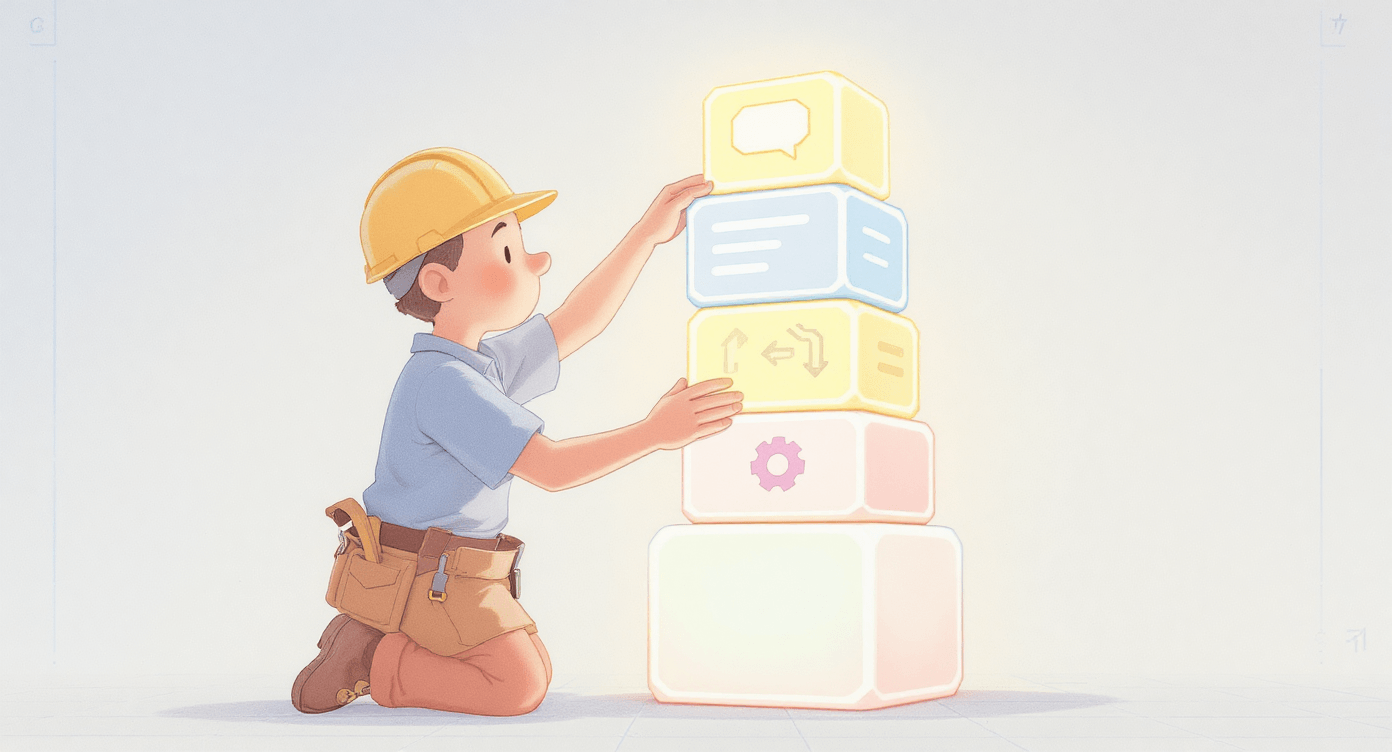
You don't need a 50-page manual. You just need three rules everyone follows:
Nothing Lives in the Chat: If an AI output is good, copy it to the Notion Project Page immediately. Chat history is where good ideas go to die.
Check the Hub First: Before anyone asks "where is that file?", they must check the Notion Database. No exceptions.
Template Everything: Every new project starts with the same Notion Template. This stops the team from reinventing the wheel every Monday morning.
💼 Real-World Case: A 3-Person Team
I recently worked with a small consultancy—just a founder, a lead strategist, and a part-time assistant. Like most people, they were "using AI," but their work was scattered across three different ChatGPT accounts and a dozen Slack threads.
The "Light-bulb" Moment: They realised they were paying for the same research three times because nobody could find the original AI output. They weren't just disorganised; they were literally throwing money away.
The Fix: They implemented a "3-Click Rule." If an AI-generated strategy or piece of content was going to be used more than once, it had to be moved to their Notion Hub within three clicks.

How they did it:
Week 1: Set up the three core Notion databases (Projects, AI Outputs, Brand Assets). The new law: "If it's not in the Hub, it doesn't exist."
Week 2: Connected Jotform for client intake and set up Gamma templates for reports.
Week 3: Moved all active projects into the Hub. Every AI output was pasted in with a date stamp.
Week 4: A 20-minute team "walk-through" to fix any friction points.
The Results (after 2 months):
Time Saved: 90% reduction in "Where is that file?" messages.
Capacity: They moved from 8 projects a week to 12, without hiring more staff.
The Vibe: The team described it as "going from chaos to actually having a system that works."
📋 Your Workspace Template (Copy This)
The 3 Essential Folders for Your Hub:
1. The Project Tracker: > This is your bird's-eye view. Instead of messy Slack threads, every client project gets one row. Use it to track the deadline, who is doing the work, and which AI tools were used.
2. The AI Vault: > Stop letting your best prompts die in your chat history. This folder is for saving "The Gold"—the specific prompts and outputs that worked. Tag them by "Type" (e.g., Email Marketing or Market Research) so you can find them in seconds.

3. The Brand Library: > Put your brand voice guides, logos, and approved templates here. When you start a new AI chat, you copy your brand guide from here first. This ensures the AI always sounds like you, not a generic bot.
Note: Our Business HQ Digital Planner includes these databases pre-built and ready to go if you want to skip the setup.

🛠️ The Tools (No Tech Degree Required)
Not all AI tools play nicely. Here's what actually integrates without making you want to scream:
The Core Stack (These Work Together)
Notion + Gamma
Create presentations in Gamma
Embed directly in Notion project pages
Share client-facing links without leaving workspace
Notion + Jotform
Build forms in Jotform
Connect your forms so client feedback flows directly into your project pages.
Client feedback flows directly into project pages
ChatGPT/Claude + Everything
Generate content in AI tool
Copy to relevant Notion page
Tag with project, date, and status
Never lose context again
CustomGPT + Your Business
Train on your specific content
Embeds anywhere you need it
Consistent brand voice across all AI outputs
Check out Beginner-Friendly AI Tools for more integration options.
The Tools That Don't Play Well
Things that make integration painful:
Tools that only export PDFs (unless you specifically need PDFs)
AI tools with no export function
Platforms that lock you into their ecosystem
Anything requiring Zapier for basic functionality (adds complexity)
Our Golden Rule: "If it takes more than 2 clicks to get output into Notion, it's not worth using regularly."
⚠️ 4 Mistakes That Kill Productivity
Mistake 1: Building Before Using
Don't spend three weeks building the "perfect" workspace before you’ve even tried it. Build it while you work on a real project.
Mistake 2: Tool Overload
You don't need five different AI writing tools. Pick one (ChatGPT or Claude) and stick with it for 90 days.
Mistake 3: No Clear Owner
If everyone is responsible for keeping the Hub tidy, nobody is. One person needs to be the "Gatekeeper" who ensures files are where they should be.

Mistake 4: Assuming Adoption is Automatic
Your team won't switch overnight. Make the new way the only way. If it’s not in the Hub, the work doesn't exist.
Understanding Common AI Mistakes helps you avoid these workspace setup pitfalls.

🗓️ Your First 7 Days
Monday: Foundation (2 hours)
Morning:
Choose your platform (probably Notion)
Set up three basic databases (Projects, AI Outputs, Resources)
Create one project page as template
Afternoon:
Document your actual current workflow
Identify where each step should live
Write your one-page playbook

Tuesday: Integration (2 hours)
Morning:
Connect your most-used AI tool to workspace
Set up Jotform for one specific use case
Test the flow with dummy data
Afternoon:
Create Gamma template for your most common deliverable
Link everything to your first real project
Fix what breaks
Wednesday: Migration (1 hour)
Task:
Move one current project into new workspace
Document any workflow issues
Adjust template based on reality
Thursday: Team Training (30 minutes)
Cover:
Here's where new projects start
Here's where AI outputs go
Here's where we store final work
Questions welcome, adjustments expected
Friday: Iteration (Ongoing)
Use the workspace for real work
Fix problems as they emerge
Adjust based on actual usage

⚙️ Next Steps: Scaling Up
Automation That Actually Helps
Use Assista for:
Auto-tagging AI outputs by project
Routing client emails to correct Notion pages
Sending weekly digest of what's in review
Reminding team about approaching deadlines
Affiliate link: Try Assista - Handles the repetitive bits so you don't have to
Don't automate:
Creative decisions
Client communication approval
Quality checks
Anything you're still learning
Rule: Only automate tasks you've done manually at least 20 times. Otherwise you're automating chaos.
Creating Your AI Assistant Library
Build CustomGPTs for:
Brand voice consistency checking
Standard client proposal generation
Common question answering
First-draft content that you'll always edit
Custom Assistants to build next:
The Brand Guardian: A GPT trained to check that all your AI-generated content matches your specific brand voice.
The On-boarding Bot: To generate welcome packs for new clients instantly.
The Scoper: To turn messy client meeting notes into a structured project plan in seconds
Workspace Health Checks
Monthly review questions:
Are we actually using what we built?
What's collecting digital dust?
Where are people still working outside the system?
What causes the most friction?
What should we automate, simplify, or eliminate?
Quarterly deep clean:
Archive completed projects
Update templates based on what's working
Remove tools nobody uses
Celebrate what's actually improved

🆘 Troubleshooting Guide
Problem: Team Isn't Using It
Likely cause: The new way is harder than the old way
Fix:
Remove the old way (delete Slack channels, archive old systems)
Make new system required (no Notion page = project doesn't exist)
Fix the specific friction points people complain about
Provide 1-on-1 help to strugglers

Problem: Can't Find Anything
Likely cause: No clear organisation logic or too much complexity
Fix:
Implement brutal simplicity: Everything goes in Projects, Outputs, or Resources
Create search-friendly naming conventions
Use tags consistently
Regular archive sessions
Problem: Tools Don't Talk to Each Other
Likely cause: Chose tools for features, not integration
Fix:
Accept some manual copying is fine
Use Notion as central repository
Don't over-integrate (creates fragile systems)
Focus on core workflow, ignore edge cases
Problem: Workspace Feels Like More Work
Likely cause: You're maintaining the workspace instead of using it
Fix:
Audit your Hub. If a folder hasn't been used in two weeks, archive it. Keep it lean
Stop trying to track everything
Focus on must-haves: active projects and final deliverables
Let the rest stay messy
✨ The Bottom Line
Here's what successful AI workspaces actually look like:
Not this: 15 integrated tools, automated workflows, custom dashboards, colour-coded everything, perfection
But this: Three databases in Notion, AI outputs pasted in with context, clear owner, team actually uses it
Emma's advice: "Start with something embarrassingly simple. Add complexity only when the simple version genuinely stops working."
Your Week 1 goal: One project, managed entirely within your workspace, from brief to delivery. That's it.
Your Month 1 goal: Team uses workspace without being reminded. Friction points identified and fixed.
Your Quarter 1 goal: Can't imagine working without it.

🚀 Your Monday Morning Action Plan
Most small businesses spend more time managing their tools than actually using them. You now have the map to flip that.
Your 1-hour task for this afternoon:
Pick your biggest, messiest current project.
Create one page for it in Notion.
Move every AI draft, client brief, and feedback note for that project onto that one page.
Feel the difference? That’s what an AI Workspace is supposed to feel like.
Want help setting this up?
We offer done-for-you AI workspace setup for UK small businesses. Get in touch for a straight conversation about what you actually need.
Related reading: 5 Common AI Mistakes That Beginners Make | Claude AI vs ChatGPT | How to Use AI: 4 Simple Ways
About SimplifyAI: We help UK business owners master AI tools without the overwhelm. No fluff, no hype - just practical guidance that actually works

Simplify AI
Making AI make sense -- one prompt at a time
Declaration
Some links on this site are affiliate links.
I may earn a small commission, but it doesn't
cost you anything extra.
I only recommend tools i trust
Thank you for your support
Socials
Location
Based in Mansfield, Nottinghamshire
Simplifying AI for beginners, no matter
where you're starting from.
All Rights Reserved.